
A professional email address should be straightforward to use. However, when Hostinger manages your mailbox and Cloudflare manages your domain’s DNS, it is easy to become unsure about where each setting belongs.
You might be able to send messages but receive nothing. Your mailbox might work in webmail while Outlook keeps asking for a password. Or you may have followed an older Gmail tutorial and discovered that its settings are no longer available.
The setup becomes much easier once you separate it into two tasks: connecting your domain to Hostinger email with Cloudflare CDN service and connecting your email application to your mailbox.
This guide explains how to configure Hostinger email with Cloudflare, add the necessary DNS records, connect supported email applications, and investigate common problems.
Scope: The settings below apply to Hostinger Email with Cloudflare, also described in current documentation as Hostinger Mail. If your Hostinger account provides Titan Email, Google Workspace, or cPanel Email, use the configuration details for that product instead.
1. How Hostinger Email with Cloudflare works together
Your domain name, website, DNS service, and email hosting do not need to be supplied by the same company.
For example, you can register a domain with one provider, host its website elsewhere, use Cloudflare for DNS, and keep its business mailboxes at Hostinger.
Each service has a different job:
| Component | Purpose |
| Domain registrar | Maintains your domain registration and nameserver delegation |
| Cloudflare DNS | Publishes the DNS records used to locate your services |
| Hostinger Email | Hosts your mailboxes and handles email delivery |
| Outlook, Gmail app, or Apple Mail | Provides an interface for reading and sending messages |
When Cloudflare is your authoritative DNS provider, add your email DNS records there. You do not need to move your nameservers to Hostinger simply to use Hostinger Email with Cloudflare. Hostinger explicitly supports manual configuration at an external DNS provider. hostinger.com
Think of DNS as the address directory for your domain. Correcting that directory helps other systems find your mailbox, but it does not create the mailbox or configure the password inside your email application.
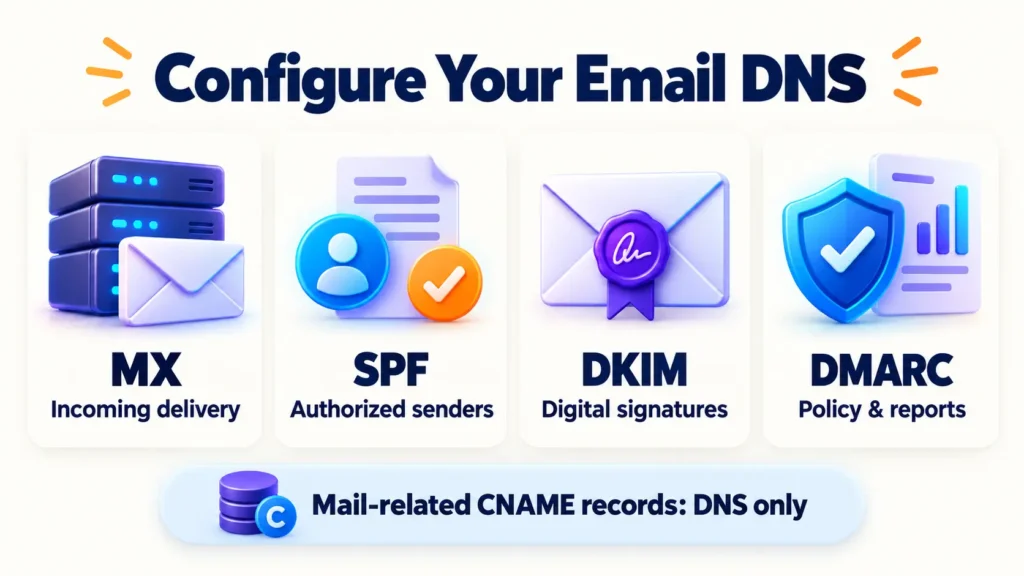
Email DNS Configuration Essentials-1-Hostinger Email with Cloudflare -DNS MX Records, SPF, DKIM, DMARC, and Email Configuration, Outlook, Gmail & Apple Mail Setup Guide
2. What you need before starting
Have these details ready:
- Access to the Hostinger account that manages your email service.
- Access to the Hostinger Email with Cloudflare account containing your domain.
- An active mailbox, such as hello@example.com.
- The password for that specific mailbox.
- The DNS and application settings displayed in your Hostinger dashboard.
Use your mailbox password, not automatically your Hostinger account password. They can be different.
Before changing an existing business domain, save a copy of its current DNS records. Also identify any other systems that send messages using the domain, such as a website contact form, invoicing platform, or marketing service.
This preparation prevents a common mistake: fixing ordinary staff email while accidentally removing authentication needed by another business application.
If you are migrating from an existing email provider, create the required destination mailboxes before switching delivery. Plan the transfer of historical messages separately; changing DNS is not a mailbox migration.
3. Confirm where your DNS is managed
Buying your domain from Hostinger does not necessarily mean Hostinger currently manages its DNS.
Check the domain’s nameserver settings at its registrar. For a typical full Cloudflare setup, the nameservers should match the pair assigned to your domain in Cloudflare.
Cloudflare also supports partial configurations where another provider remains authoritative. In that situation, your email records belong at the authoritative provider, not automatically in Cloudflare. Cloudflare DNS docs
For the rest of this guide, we assume Cloudflare is authoritative.
Open your domain in Cloudflare and find DNS → Records. Keep your Hostinger email with Cloudflare domain settings open in another tab so you can compare each entry.
Avoid changing nameservers merely because a mail application cannot connect. First establish whether the fault concerns public DNS, mailbox access, or the application itself.

Hostinger Email Setup with Cloudflare-2-Hostinger Email with Cloudflare -DNS MX Records, SPF, DKIM, DMARC, and Email Configuration, Outlook, Gmail & Apple Mail Setup Guide
4. Check whether Cloudflare Email Routing is enabled
Cloudflare Email Routing and Cloudflare DNS are separate features.
You can use Cloudflare DNS with Hostinger Email with Cloudflare without enabling Email Routing. Routing introduces its own mail-delivery records, which can conflict with the records required by your mailbox provider.
If Hostinger will receive mail directly for your domain:
- Find the domain’s Email Routing settings in Cloudflare.
- Check whether routing is active.
- Review existing forwarding addresses and recreate any that you still need at the appropriate service.
- Disable routing for that domain.
- Confirm that its managed MX records have been removed or released before configuring Hostinger’s records.
Cloudflare confirms that active Email Routing can manage MX records and that disabling it allows you to configure another mail provider. Dashboard labels may vary between the domain-level Email area and the newer Email Service interface. Cloudflare DNS docs
Do not retain another provider’s MX records as an improvised backup. Multiple unrelated mail services do not automatically know how to deliver messages to the same mailbox.
5. Add Hostinger MX records in Cloudflare
MX records tell sending mail servers where to deliver messages addressed to your domain.
Hostinger email with Cloudflare CDN published standard MX settings are:
| Type | Name | Mail server | Priority | TTL |
| MX | @ | mx1.hostinger.com | 5 | Auto |
| MX | @ | mx2.hostinger.com | 10 | Auto |
Compare these values with the settings shown for your own email plan before saving them. hostinger.com
In Cloudflare:
- Click Add record.
- Select MX.
- Enter @ as the name for the root domain.
- Enter mx1.hostinger.com as the mail server.
- Set priority to 5.
- Save, then repeat for the second server with priority 10.
A lower priority number indicates a more preferred server. It does not refer to connection speed or the importance of individual emails.
Enter hostnames without https://, a port number, or a mailbox username.
For a standard migration to Hostinger, remove the previous provider’s MX records when you are ready to switch delivery. Preserve unrelated website and verification records.
6. Add the Hostinger SPF record
SPF identifies servers authorized to send email for a domain.
For a domain sending exclusively through Hostinger Email with Cloudflare, the published default is:
| Type | Name | Content |
| TXT | @ | v=spf1 include:_spf.mail.hostinger.com ~all |
Before adding it, search your existing TXT records for an entry beginning with v=spf1.
There should be one SPF policy per hostname. If you already authorize another legitimate sending service, merge the required mechanisms into one valid policy instead of adding a second SPF record. Hostinger documents this combined-record approach. hostinger.com
Do not delete all TXT records. Other TXT entries may verify ownership for unrelated services.
Also avoid collecting unnecessary SPF includes. SPF has a DNS-lookup limit, and an oversized policy can fail even when every service listed looks legitimate. Ask the relevant providers which authorizations are actually needed. Google Workspace Admin Help
Connect your mailbox-3-Hostinger Email with Cloudflare -DNS MX Records, SPF, DKIM, DMARC, and Email Configuration, Outlook, Gmail & Apple Mail Setup Guide
7. Add Hostinger DKIM records
DKIM helps recipients verify that an authorized sending system signed an outgoing message and that the signed content has not been altered.
Hostinger email with Cloudflare CDN publishes these default DKIM CNAME records:
| Type | Name | Target | TTL |
| CNAME | hostingermail-a._domainkey | hostingermail-a.dkim.mail.hostinger.com | Auto |
| CNAME | hostingermail-b._domainkey | hostingermail-b.dkim.mail.hostinger.com | Auto |
| CNAME | hostingermail-c._domainkey | hostingermail-c.dkim.mail.hostinger.com | Auto |
| CNAME | autodiscover | autodiscover.mail.hostinger.com | Auto |
| CNAME | autoconfig | autoconfig.mail.hostinger.com | Auto |
Add the records supplied by your Hostinger dashboard and set the CNAME records to DNS only. hostinger.com
Pay attention to the name and target fields. They look similar but are not interchangeable.
If verification fails, compare the complete record names and check that the domain has not been accidentally appended twice. Also check whether CNAME flattening is interfering with the expected CNAME response; Cloudflare’s verification guidance recommends DNS-only records with flattening disabled where a service needs to see the CNAME itself. Cloudflare DNS docs
When you use a separate newsletter or transactional email platform, that service may require additional DKIM selectors. Add its specified records without replacing unrelated, working Hostinger selectors.
8. Add a DMARC record
DMARC lets you publish an authentication policy and receive information about messages using your domain.
An initial monitoring record can look like this:
| Type | Name | Content |
| TXT | _dmarc | v=DMARC1; p=none; rua=mailto:dmarc@example.com |
Replace dmarc@example.com with an address or reporting destination you actually control and have configured to receive reports. Hostinger includes this monitoring-style example in its manual setup guidance. hostinger.com
The p=none policy requests monitoring rather than quarantine or rejection based on DMARC failure. It should not be described as full enforcement against domain impersonation.
A sensible rollout is to identify all legitimate senders, examine authentication results and reports, fix problems, and then consider a stricter policy. Google’s DMARC rollout guidance also describes starting with monitoring before increasing enforcement. Google Workspace Admin Help
If your domain already has a carefully managed DMARC policy, review it before making changes. Do not replace an established enforcement policy with a generic example just because you are adding a new mailbox.
9. Understand Cloudflare’s orange-cloud and grey-cloud settings
Cloudflare’s standard proxy is designed for supported web traffic. It does not carry ordinary IMAP, POP, or SMTP connections.
There are two useful distinctions:
- MX and TXT records are inherently DNS-only. They do not have a normal orange-cloud proxy option.
- Email-related A, AAAA, and CNAME records may need manual attention. Hostnames used for mail connections or provider verification should return the required DNS information directly. Cloudflare DNS docs
Your website can remain proxied while your mail-related records use DNS only.
When connecting an application directly to imap.hostinger.com and smtp.hostinger.com, you are using Hostinger’s server names. You do not need to create an invented mail.example.com server to complete the setup.
Changing your website’s Cloudflare SSL mode will not correct an incorrect mailbox password or SMTP port.
10. Verify DNS and test webmail
After saving the records, return to the email domain settings in Hostinger and refresh the connection checks.
Changes may appear quickly, but cached DNS responses can delay consistent results. Hostinger advises that its email DNS changes can take up to 24 hours to propagate. Avoid repeatedly replacing correct values while waiting. hostinger.com
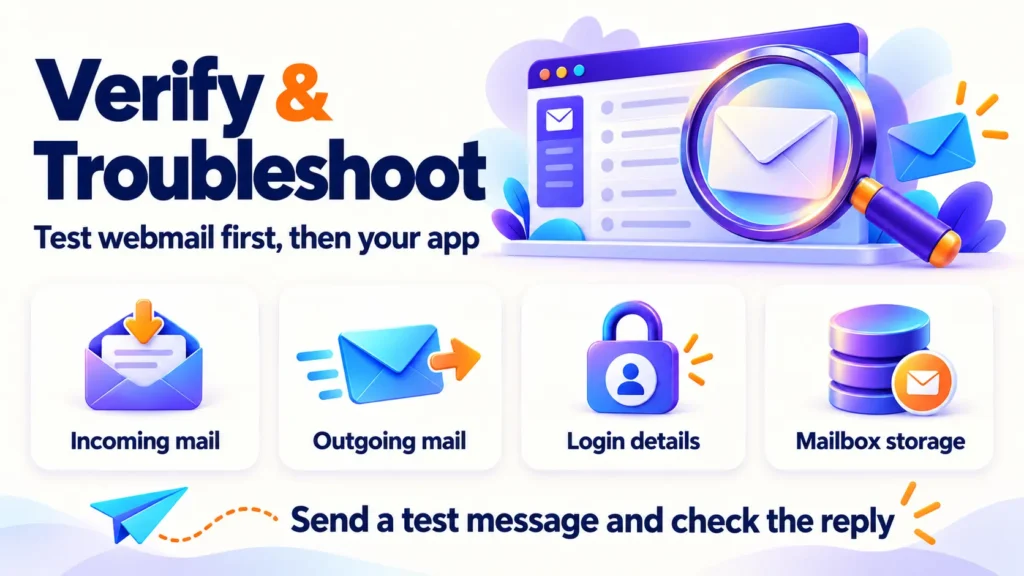
Next, open Hostinger Webmail through your dashboard. Webmail lets you test the mailbox without introducing an external application into the process. hostinger.com
Use a simple test sequence:
- Sign in to the new mailbox.
- Send a message to an external address you control.
- Reply from that external account.
- Confirm the reply arrives.
- Repeat with another external provider if available.
Keep the test messages easy to identify, for example, “Business email setup test – incoming.”
If webmail works in both directions, you have a useful baseline. If an application then fails, investigate its connection settings before changing DNS again.
Choose Your Email App-4-Hostinger Email with Cloudflare -DNS MX Records, SPF, DKIM, DMARC, and Email Configuration, Outlook, Gmail & Apple Mail Setup Guide
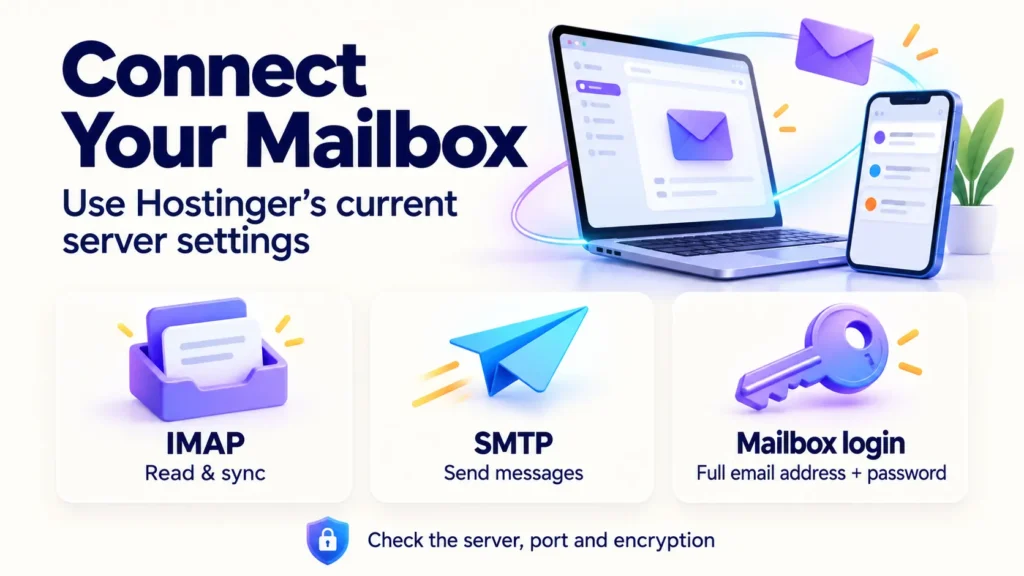
11. Hostinger IMAP, SMTP, and POP settings
Use this reference when your application asks for manual configuration:
| Setting | Value |
| Incoming protocol | IMAP |
| Incoming server | imap.hostinger.com |
| Incoming port | 993 |
| Incoming encryption | SSL/TLS |
| Outgoing server | smtp.hostinger.com |
| Outgoing port | 465 |
| Outgoing encryption | SSL/TLS |
| Alternative outgoing connection | Port 587 with STARTTLS |
| Username | Full email address |
| Password | Mailbox password |
| SMTP authentication | Required |
| Optional POP server | pop.hostinger.com |
| Optional POP port | 995 with SSL/TLS |
Hostinger email with Cloudflare CDN lists these server settings and specifies port 587 with TLS/STARTTLS as an alternative when SMTP encryption issues occur. hostinger.com
Keep the port and encryption method paired correctly.
For ordinary use across a phone and computer, choose IMAP. It is intended for working with messages stored on the server across devices. POP can suit particular download-based workflows, but its retention settings deserve attention before you use it for business mail.
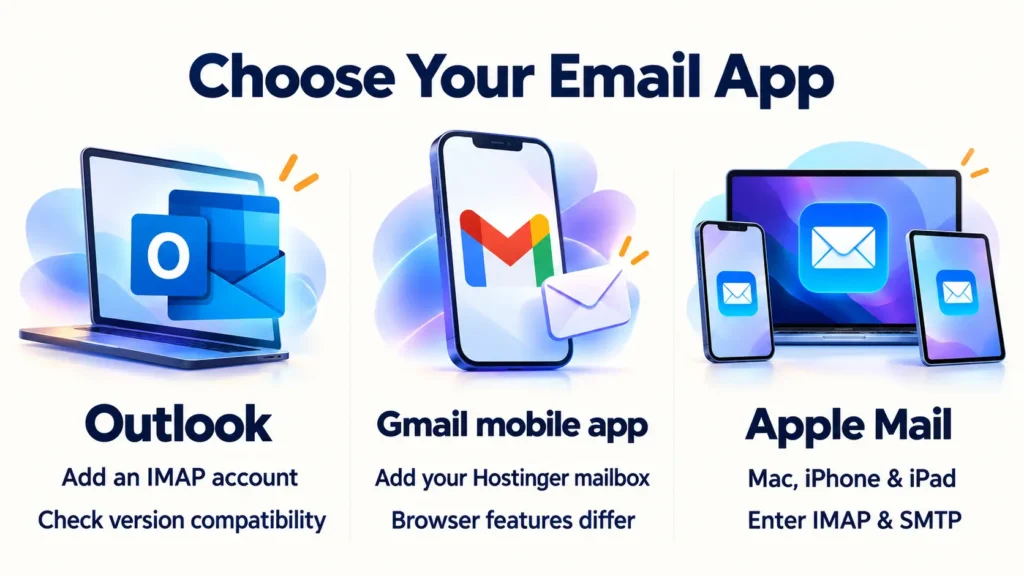
12. Configure Hostinger Email with Cloudflare in classic Outlook for Windows
For manual setup in classic Outlook:
- Open File → Add Account.
- Enter your complete business email address.
- Expand Advanced options.
- Enable the option to configure the account manually.
- Select Connect, then choose IMAP.
- Enter the incoming and outgoing settings from the reference table.
- Enter your mailbox password.
- Complete the connection process and run a send-and-receive test.
Microsoft documents this advanced IMAP setup workflow for classic Outlook. Microsoft Support
If Outlook receives messages but cannot send, inspect the outgoing server authentication settings. Where the interface provides the option, use the same mailbox credentials for SMTP.
Be careful when Outlook automatically fills in server names. A guess such as mail.example.com is not a substitute for the server names supplied by Hostinger.
After setup, check your displayed sender name and signature. Send a message to an external account and confirm that replies return to the intended business address.
What about New Outlook?
Microsoft’s current documentation lists third-party IMAP accounts as supported in New Outlook. However, Hostinger email with Cloudflare CDN publishes a separate notice warning about Hostinger connectivity in that application. The providers’ guidance is inconsistent, so universal compatibility should not be promised. Microsoft Support
You can try adding the account through New Outlook’s account settings if manual IMAP configuration is available. If it fails while webmail works, use classic Outlook, another supported IMAP client, or Hostinger Webmail, and provide the exact error to support.
13. Configure Hostinger Email with Cloudflare in Outlook for Android or iPhone
Outlook’s mobile setup differs from its Windows interface.
Open Outlook’s account settings, add an email account, and enter your business address. If automatic detection selects an unsuitable provider, choose manual setup and IMAP.
Provide your full email address as the username for both incoming and outgoing connections. Use the Hostinger server settings listed earlier.
Microsoft notes that some mobile configuration screens accept a port appended to the hostname, such as imap.hostinger.com:993. Use a separate port field when the application provides one. Microsoft Support
After adding the mailbox, confirm that you are composing from the business account rather than a personal account already present in Outlook.
14. Add Hostinger Email with Cloudflare to the Gmail mobile app
The Gmail app can serve as an email client for a Hostinger mailbox. This does not move the mailbox to Google or turn it into a Google Workspace account.
On Android or iPhone:
- Open the Gmail app.
- Open the account menu or Settings.
- Select Add another account or Add account.
- Choose Other or Other (IMAP).
- Enter your business address.
- Select IMAP if asked.
- Enter the mailbox password.
- Supply the incoming and outgoing Hostinger settings.
- Complete the remaining account preferences.
Hostinger documents this mobile IMAP approach and distinguishes it from purchasing Google Workspace through Hostinger. hostinger.com
Test sending from the newly added account, then check the From address on the received message.
If you manage several accounts in Gmail, give the business mailbox a recognizable description. That small step can reduce accidental replies from a personal address.
Webmail troubleshooting, made simple-5-Hostinger Email with Cloudflare -DNS MX Records, SPF, DKIM, DMARC, and Email Configuration, Outlook, Gmail & Apple Mail Setup Guide
15. Can you use Hostinger Email with Cloudflare in Gmail on a computer?
This question needs a different answer from Gmail mobile setup.
Older tutorials often instruct readers to open Gmail in a browser, enable POP fetching under “Check mail from other accounts,” and configure “Send mail as.”
As checked in October 2026, those instructions are transitional. Google says new users are no longer supported for the retiring Gmailify/POP-fetching features after the first quarter of 2026, while existing users may continue until January 2027. Gmail Help
Google’s newer notice also announces the removal of third-party “Send as” functionality in January 2027 and possible restrictions on new configurations during the transition. It separately states that adding non-Google accounts to the Gmail mobile app remains supported. Gmail Help
For a new setup, use Hostinger Webmail in your browser or a desktop IMAP application.
Forwarding incoming messages to Gmail is another option, but forwarding is not a complete mailbox synchronization system. It does not automatically synchronize folders or give you a durable way to reply from your Hostinger address.
If your requirement is specifically a full business mailbox hosted inside Gmail on the web, assess Google Workspace as a separate email-hosting migration.
16. Configure Hostinger Email with Cloudflare in Apple Mail on Mac
On a Mac:
- Open Mail.
- Select Mail → Add Account.
- Enter your business email address.
- Follow the account setup prompts.
- Choose the other-mail-account option if your version displays a provider list.
- If automatic detection fails, provide your IMAP and SMTP details manually.
- Enable Mail for the account and finish setup.
Apple’s current interface begins with the email address; older versions may show the provider selection first. Apple Support (UK)
If you need to correct the connection, open Mail → Settings → Accounts → Server Settings. Where available, turn off automatic connection management to enter the required ports and authentication details yourself. Apple Support (IE)
When several accounts are configured, verify that the selected outgoing SMTP server belongs to the Hostinger mailbox. An account may receive correctly while sending through an unintended server.
17. Configure Hostinger Email with Cloudflare on iPhone or iPad
In recent iOS and iPadOS versions:
- Open Settings → Apps → Mail → Mail Accounts.
- Tap Add Account.
- Enter your email address and continue.
- Choose Add Other Account → Mail Account when offered.
- Enter your name, address, password, and description.
- If automatic configuration fails, select IMAP.
- Enter the incoming and outgoing server details.
- Save the account and enable Mail.
Older versions may place these options under Settings → Mail → Accounts. Apple documents the manual configuration route for providers that are not automatically recognized. Apple Support (AU)
Fill in the SMTP username and password even if a particular screen labels them optional; use Hostinger’s authenticated outgoing connection.
If sending fails, inspect the account’s SMTP settings, including the active server, encryption, and port. Do not accept an unexplained certificate mismatch as the normal solution.
Hostinger email troubleshooting with Cloudflare-Hostinger Email with Cloudflare -DNS MX Records, SPF, DKIM, DMARC, and Email Configuration, Outlook, Gmail & Apple Mail Setup Guide
18. Troubleshoot common Hostinger with Cloudflare email problems
Troubleshooting is easier when you record what works before changing anything.
- You can send but cannot receive
Check the published MX records, the recipient mailbox spelling, and whether the mailbox exists. Also review the email plan status, storage usage, spam folders, and filtering rules. Hostinger identifies missing or incorrect mail DNS records as one cause of incoming-mail failures. hostinger.com
- You can receive but cannot send
Focus on SMTP: server name, authentication, password, port, and encryption. Read the complete error. A connection timeout is different from a server rejecting an authenticated message.
- The application repeatedly asks for a password
Try the same mailbox credentials in webmail. If webmail login fails, resolve the password or account-access issue first. If it succeeds, inspect the application’s stored username and password rather than assuming the DNS records are wrong. Hostinger email with Cloudflare CDN provides separate guidance for login and mailbox problems. Hostinger Help Center
- The mailbox suddenly stops receiving after working normally
Check storage. Hostinger states that a mailbox at its storage limit cannot receive new messages until space is freed or expanded. hostinger.com
- Messages are missing after a provider change
Confirm which server holds the historical messages. DNS changes direct future delivery; they do not copy your previous inbox. Treat historical-mail transfer as a separate migration task.
- A DNS check passes, but delivery still fails
Keep the full bounce message, time of the attempt, sender, recipient, and affected application. These details give support a much stronger starting point than “email is not working.”
19. A practical testing checklist
Before handing the mailbox over to a colleague, complete a short acceptance test:
- Send an external message from webmail.
- Receive an external reply.
- Send from the chosen desktop application.
- Send from the chosen mobile application.
- Check the sender name and business address.
- Confirm that expected folders appear.
- Check a small attachment.
- Record which application and configuration were tested.
For a team, keep a brief setup record containing server names, ports, DNS ownership, and the person responsible for administration. Store passwords securely rather than adding them to a shared setup document.
This makes future phone replacements, staff onboarding, and troubleshooting much easier.
Frequently asked questions for Hostinger with Cloudflare CDN
→ Can I keep Hostinger Email with Cloudflare nameservers?
Yes. Hostinger supports configuring email records at an external DNS provider. When Hostinger Email with Cloudflare is authoritative, publish the required email records there. Your website and email do not need to share a hosting provider. Hostinger Help Center
→ Do I need to change my website’s IP address?
An email-only configuration normally concerns mail delivery and authentication records. You should not change a working website address merely to connect a mailbox. Review the purpose of each record before editing it.
→ Should Hostinger email with Cloudflare records have an orange cloud?
MX and TXT records are always DNS-only. Relevant mail and verification CNAME records should also use DNS only. You can continue using Cloudflare’s proxy for your website where appropriate. Cloudflare DNS docs
→ Do I need separate MX records for every employee?
No. MX records direct mail for the domain to its email service. Create individual employee mailboxes at Hostinger email with Cloudflare CDN rather than adding another pair of MX records for each address.
→ Can I use Outlook without moving email hosting to Microsoft?
Yes, a compatible Outlook application can act as a client for an IMAP mailbox. Adding the account to the application is different from migrating hosting to Microsoft 365. Check the New Outlook compatibility note earlier in this guide. Microsoft Support
→ Is the Gmail app the same as Google Workspace?
No. The Gmail app can display a mailbox hosted by another provider. Google Workspace is a separate hosted service. Using the Gmail app to access Hostinger email with Cloudflare CDN does not automatically change your email hosting. hostinger.com
→ Will forwarding to Gmail let me manage everything there?
Forwarding can deliver incoming copies, but it should not be treated as full mailbox synchronization. Google’s announced third-party “Send as” retirement also means you should plan another supported method for sending from your business address. Gmail Help
→ Does changing MX records transfer old emails?
No. It changes the delivery destination. Export, import, or migrate existing messages separately, and verify the result before closing the old service.
→ Why does my account work in webmail but fail on my phone?
That result suggests you should investigate the phone’s account configuration: credentials, account type, incoming server, outgoing server, encryption, and network access. It is a useful diagnostic clue, though it does not prove every part of the email setup is perfect.
→ What should I send to support if setup still fails?
Provide the affected mailbox, application name and version, exact error, time of the test, and whether webmail can send and receive. Include relevant DNS screenshots if requested, but never include passwords in an ordinary support message.