
Why You Should Combine Free CloudFlare CDN with Hostinger Hosting
If you want a fast, secure, and SEO-optimized website, combining a reliable hosting provider with a powerful CDN is essential.
Two of the best tools for this are:
- Hostinger (affordable, beginner-friendly hosting)
- Cloudflare (free CDN + security layer)
Together, they can:
- Improve website speed worldwide
- Protect your site from attacks
- Boost Google rankings
- Increase conversions
What is Hostinger? (Quick Overview)
Hostinger is one of the most popular hosting providers in 2026.
Key Features
- Fast LiteSpeed servers
- Free SSL certificate
- Affordable pricing
- Beginner-friendly dashboard (hPanel)
Perfect for:
- Bloggers
- Affiliate marketers
- Businesses website
What is Cloudflare? (Quick Overview)
Cloudflare is a global CDN that sits between your website and visitors.
What It Does
- Caches content globally
- Improves loading speed
- Blocks malicious traffic
Why Use Cloudflare CDN with Hostinger? (Power Combo)
1. Faster Website Speed
- Hostinger provides fast servers
- Cloudflare delivers content globally
Result: Lightning-fast loading times
2. Better SEO Rankings
Speed + uptime + security = better Google ranking
3. Free SSL + Security
- Cloudflare adds extra protection
- Prevents DDoS attacks
4. Reduced Server Load
Cloudflare handles traffic → the hosting server works less
Setup Cloudflare CDN with Hostinger Guide (2026): Boost Speed, Security & SEO
Before You Start (Requirements)
✔ Domain name
✔ Hosting account with Hostinger
✔ Cloudflare account
✔ Access to DNS settings
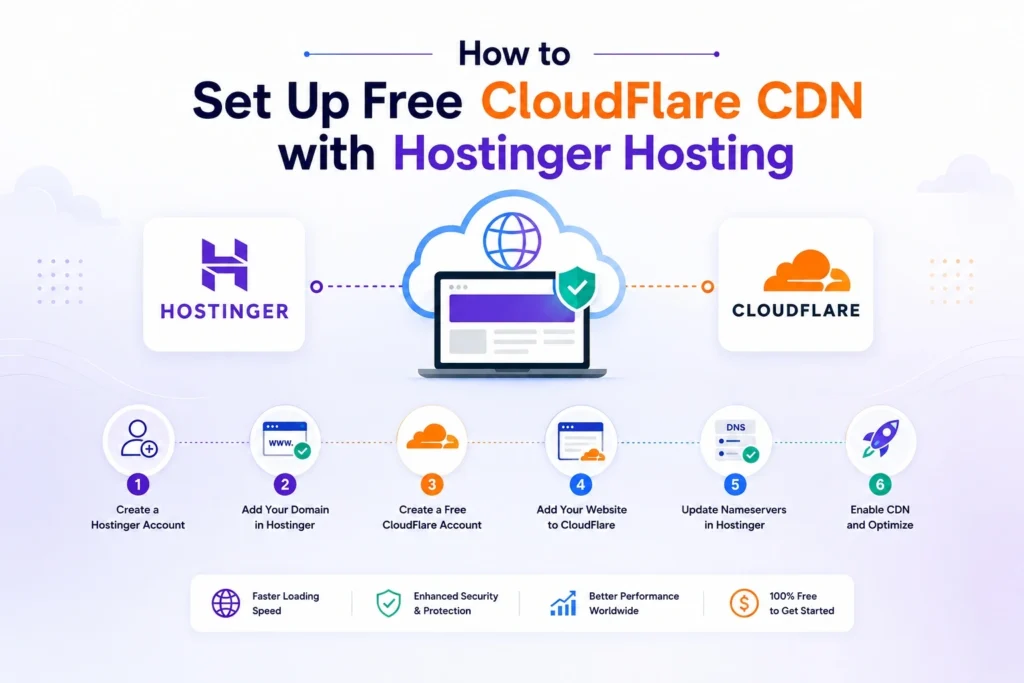
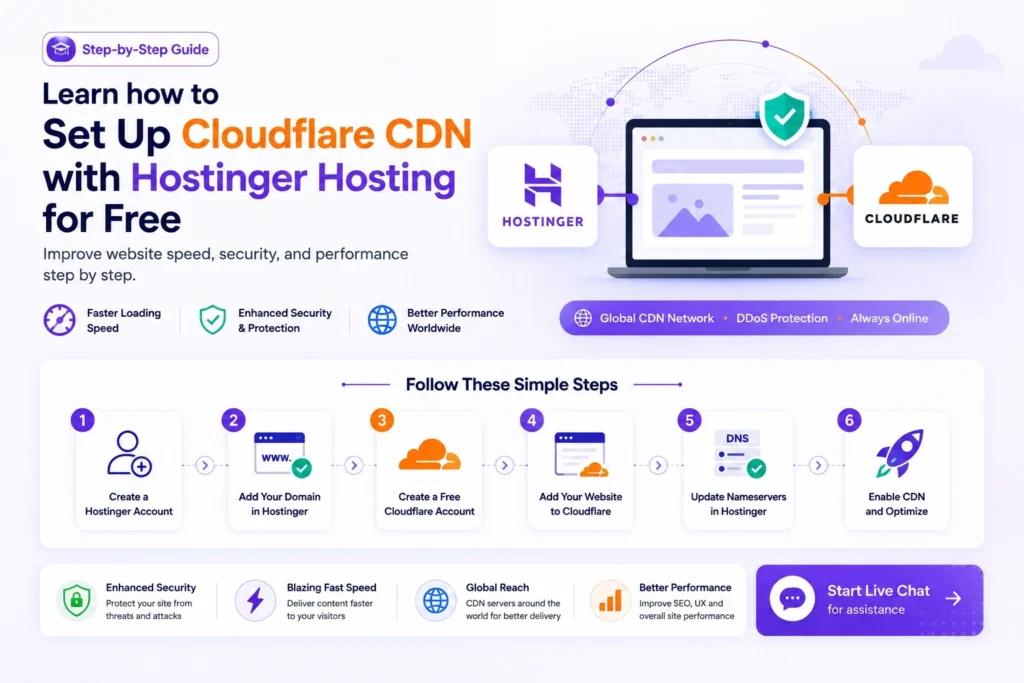
Step-by-Step: Cloudflare CDN with Hostinger Setup
Step 1: Get Your Hosting Details from Hostinger
Log in to your Hostinger account
Go to:
- hPanel → Hosting → Manage
Find:
- Server IP address
- Domain details
Step 2: Create an account on Cloudflare
Go to Cloudflare
- Sign up
- Choose Free Plan
Step 3: Add Your Domain to Cloudflare
- Click “Add Site”
- Enter your domain
- Select Free Plan
Step 4: Import DNS Records
Cloudflare will scan existing DNS records.
Check:
- A record → should point to the Hostinger IP
- CNAME → www pointing to the domain
Step 5: Update A Record (If Needed)
If incorrect:
- Type: A
- Name: @
- IP: Hostinger server IP
Step 6: Change Nameservers to Cloudflare
Cloudflare will give nameservers like:
- ns1.cloudflare.com
- ns2.cloudflare.com
Now in Hostinger Domain Settings:
- Go to Domains → DNS / Nameservers
- Replace with Cloudflare nameservers
Step 7: Wait for DNS Propagation
- Takes up to 24 hours
- Usually completes faster
Step 8: Enable SSL in Cloudflare
Go to:
- SSL/TLS → Select Full (Strict)
Step 9: Enable Cloudflare Performance Settings
Turn ON:
- Auto Minify
- Brotli compression
- Caching
Step 10: Optimize in Hostinger
Inside Hostinger:
- Enable LiteSpeed Cache
- Use CDN integration (optional)
How to Check If the Cloudflare CDN with Hostinger Setup is Working
1. Visit Your Website
Check if it loads
2. Check HTTPS
Should show a secure padlock
3. Use Speed Test Tools
Compare before and after
Performance Results You Can Expect
After setup:
- Faster page load speed
- Improved Core Web Vitals
- Better SEO ranking
- Lower bounce rate
Common Issues & Fixes
Issue 1: Website Not Loading
Fix:
- Check DNS records
- Wait for propagation
Issue 2: SSL Error
Fix:
- Set SSL to Full (Strict)
Issue 3: Infinite Redirect Loop
Fix:
- Enable HTTPS properly
- Avoid mixed SSL settings
How to Set Up Free CloudFlare CDN with Hostinger Hosting -BestDealPilot
Advanced Optimization Tips
1. Enable “Always Use HTTPS.”
Forces secure browsing
2. Use Page Rules
Cache important pages
3. Enable Firewall
Blocks harmful traffic
4. Optimize Images
Use compressed images
Why This Setup is Perfect for a Website
If you run blogs:
- Speed = more conversions
- Security = more trust
- SEO = more traffic
This setup directly increases revenue potential

Frequently Asked Questions-FAQs
FAQs of Cloudflare CDN with Hostinger
1. Is Cloudflare free with Hostinger?
Yes, Cloudflare has a free plan.
2. Do I need technical knowledge?
No, beginners can follow this guide.
3. Will Cloudflare slow down my site?
No, it makes it faster.
4. Can I remove Cloudflare later?
Yes, just change nameservers back.
5. Does this setup improve SEO?
Yes, significantly.
Ready to build a fast and secure website?
👉 Start with Hostinger today
- Affordable plans
- Beginner-friendly setup
- Perfect for bloggers
💬 Need help?
Visit bestdealpilot.com and use our Tawk.to live chat
We’ll help you:
- Set up Hostinger
- Connect Cloudflare
- Launch your website
Summary
Combining Cloudflare CDN with Hostinger is one of the smartest moves.
Final Benefits
- Faster website
- Better SEO
- Strong security
- Higher conversions
Set it up once—and enjoy long-term performance benefits