
After buying a domain and hosting, the next important step is to connect them properly. Without this connection, your website won’t go live.
Many beginners get confused here – but the process is actually simple once you understand it.
In this guide, you’ll learn:
- How to connect a domain to hosting
- Different connection methods
- Step-by-step instructions
- Common mistakes to avoid connect a domain to hosting
What Does “Connect a Domain to Hosting” Mean?
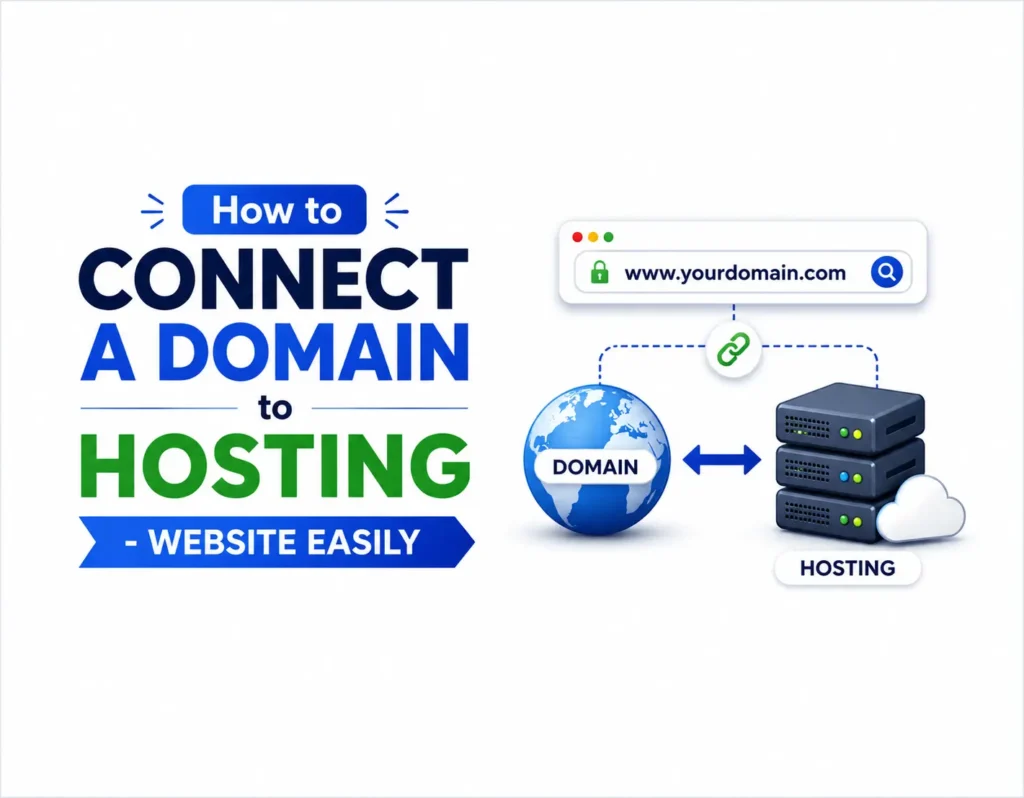
Connecting a domain to hosting means:
→ Linking your domain name (e.g., yourdomainname.com) to your hosting server so your website becomes accessible online.
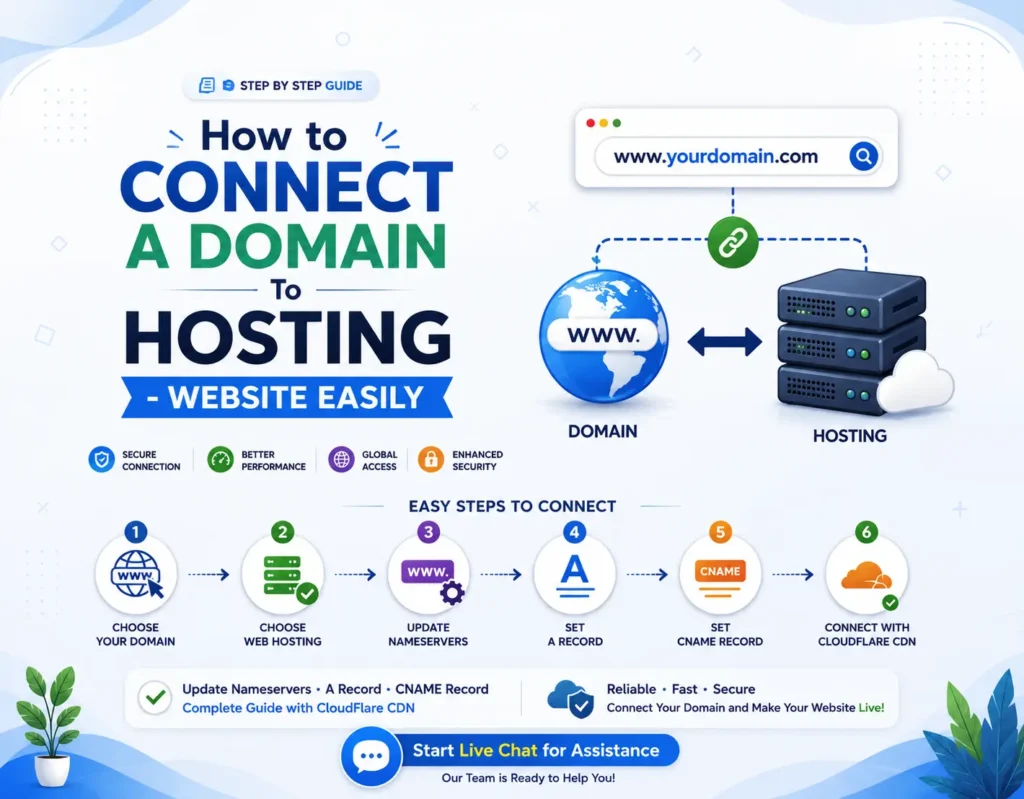
Two Main Ways to Connect a Domain to Hosting
There are two standard methods:
Method 1: Using Nameservers (Recommended for Beginners to connect a domain to hosting)
This is the easiest and most common method.
→ You point your domain to your hosting provider using nameservers
Method 2: Using DNS Records (Advanced Method for connecting a domain to hosting)
This involves manually updating:
- A record
- CNAME record
→ Best for advanced users or custom setups
Method 1: Connect a Domain to Hosting Using Nameservers (Step-by-Step)
Step 1: Get Nameservers from Your Hosting Provider
When you purchase hosting, your provider gives you nameservers.
Example:
- ns1.hostingprovider.com
- ns2.hostingprovider.com
→ You’ll find this in:
- Welcome email
- Hosting dashboard
Step 2: Login to Your Domain Registrar Account
Go to where you bought your domain.
Examples:
- Domain registrar dashboard
- Domain management panel
Step 3: Find DNS or Nameserver Settings
Look for:
- DNS Management
- Nameserver Settings
- Domain Settings
Step 4: Replace Existing Nameservers
You’ll see default nameservers. Replace them with your hosting nameservers.
Example:
Old:
- ns1.oldprovider.com
New:
- ns1.hostingprovider.com
- ns2.hostingprovider.com
Step 5: Save Changes
Click Save or Update
Step 6: Wait for DNS Propagation
→ It takes up to 24–48 hours for changes to apply globally
Step 7: Install Your Website (Optional but Important)
Once connected:
- Install WordPress
- Upload website files
Method 2: Connect a Domain to Hosting Using A Record (Advanced Method CloudFlare)
Step 1: Get the Hosting IP Address
Your hosting provider gives you a server IP.
Step 2: Go to DNS Settings
Log in to the domain panel → DNS management
Step 3: Update A Record
- Type: A
- Host: @
- Value: Your hosting IP
Step 4: Add CNAME Record (Optional)
For the www version:
- Host: www
- Value: yourdomain.com
Step 5: Save and Wait
Again, allow DNS propagation time
How to Check If a Domain is Connected
You can verify the connection using:
Method 1: Browser Check
Type your domain → see if website loads
Method 2: Online Tools
Search:
- “DNS checker”
- “Whois lookup”
Method 3: Ping Command
Advanced users can test via the command line
Common Problems & Fixes
1. Website Not Loading
Possible reasons:
- DNS not propagated
- Wrong nameservers
→ Solution:
Wait 24–48 hours and recheck
2. Wrong IP Address
→ Fix:
Update A record correctly
3. SSL Not Working
→ Fix:
- Install SSL certificate
- Enable HTTPS
4. Domain Still Points to Old Hosting
→ Fix:
Clear browser cache or wait
Important Tips for Beginners
- Always double-check nameservers
- Don’t mix nameservers + A record (choose one method)
- Keep login details safe
- Take screenshots before changes
Nameservers vs DNS Records (Quick Comparison)
| Feature | Nameservers | DNS Records |
| Difficulty | Easy | Medium |
| Control | Full via host | Manual |
| Best For | Beginners | Advanced users |
How Long Does It Take to Connect a Domain to Hosting?
- Usually: Few minutes to setup
- Propagation: 24–48 hours
SEO Impact of Proper Domain Connection
Correct setup ensures:
- Fast website loading
- No downtime
- Better Google indexing
→ Incorrect setup can harm your rankings
Pro Tip: Use Same Provider for Domain & Hosting
Benefits:
- Easier setup
- Faster connection
- Better support
Beginner-Friendly Checklist
✔ Domain purchased
✔ Hosting purchased
✔ Nameservers updated
✔ DNS propagated
✔ Website installed
Summary
Connecting a domain to hosting is one of the most important steps in launching a website.
Once done correctly:
- Your website becomes live
- Visitors can access it
- You’re ready to start blogging or earning online
Frequently Asked Questions (FAQs)
1. How do I connect a domain to hosting?
You can connect your domain to hosting by updating your domain’s nameservers or DNS records with the details provided by your hosting company.
2. Which method is best for beginners: Nameservers or DNS Records?
Using nameservers is the easiest and most beginner-friendly method because your hosting provider manages all DNS settings automatically.
3. How long does it take for a domain to connect to hosting?
The setup only takes a few minutes, but DNS propagation can take anywhere from a few hours to 48 hours worldwide.
4. Why is my website not showing after connecting the domain?
This usually happens because:
- DNS changes are still propagating
- Nameservers were entered incorrectly
- Hosting setup is incomplete
5. Can I connect a domain to hosting without technical knowledge?
Yes. Most hosting providers offer simple dashboards, and you only need to copy and paste the correct nameservers.
6. What are nameservers?
Nameservers are settings that connect your domain name to your hosting server so visitors can access your website online.
7. What is an A Record in DNS?
An A Record points your domain directly to your hosting server’s IP address. This method is more advanced than using nameservers.
8. Should I use both nameservers and A records together?
No. Beginners should use one method only—preferably nameservers—to avoid DNS conflicts.
9. How can I check if my domain is connected successfully?
You can:
- Open your domain in a browser
- Use online DNS checker tools
- Check via command line using the ping command
10. Can I change hosting providers later?
Yes. You can move your website anytime by updating your nameservers or DNS records to the new hosting provider.
11. Does connecting domain to hosting affect SEO?
Yes. Proper setup helps:
- Faster website loading
- Better uptime
- Improved Google indexing
Incorrect DNS settings can negatively impact rankings and accessibility.
12. Do I need SSL after connecting my domain?
Yes. Installing an SSL certificate enables HTTPS and secures your website for visitors and search engines.
13. What happens during DNS propagation?
During propagation, internet servers worldwide update your new DNS settings. Some users may see the new website while others still see the old one temporarily.
14. Is it better to buy domain and hosting from the same company?
For beginners, yes. It makes setup easier and support faster, though it’s not mandatory.
15. What should I do if I still can’t connect my domain?
Contact your hosting provider’s support team or use live chat assistance for step-by-step help with DNS and hosting setup.